Have you ever noticed that some APIs don't receive traffic evenly?
Instead of steady, predictable calls, certain endpoints get sudden bursts - a few calls at once, followed by quiet periods, and then another burst.
When multiple users trigger these bursts at the same time, the API can become overloaded. Response times increase, CPU usage spikes, and users start experiencing delays. This is where a more advanced rate limiting technique comes into play - the Sliding Window Rate Limiter.
This blog focuses on how the Sliding Window limiter works in ASP.NET Core and how it control unpredictable traffic spikes.
Rate Limiting: What Is It?
Rate limiting is a technique that controls how many requests a client can send to an API in a given time period so that the system stays stable, secure, and fair for all users.
Traffic suddenly increases
Scripts or scheduled jobs repeatedly make calls
Brute-force attacks or accidental request floods occur
With rate limiting in place, the API stays fair and consistent for all clients.
For a general introduction to ASP.NET Core rate limiting, refer to the first blog in this series:
What Is a Sliding Window Rate Limiter?
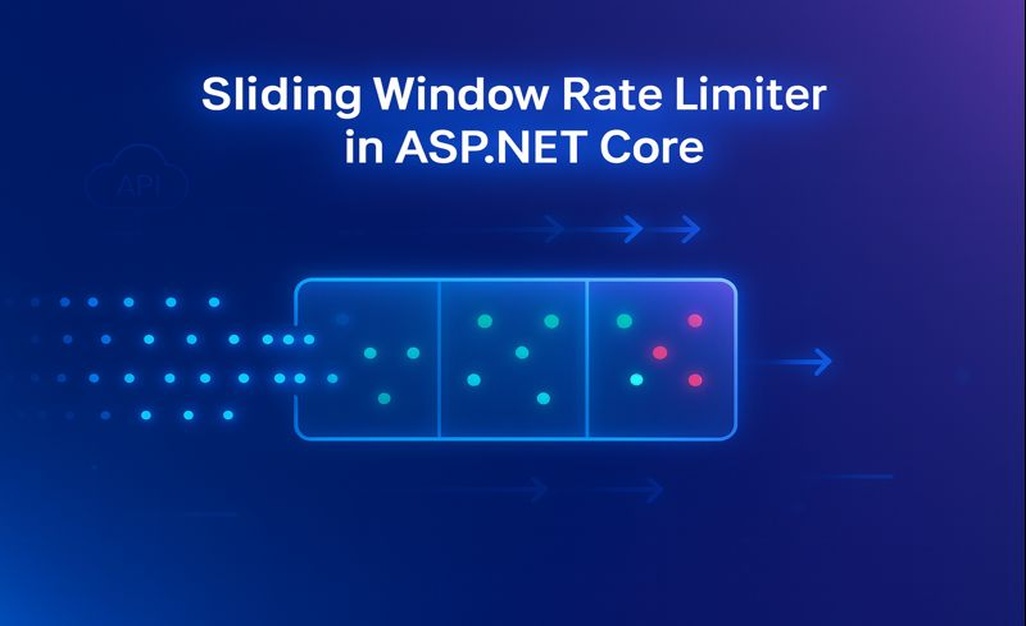
A sliding window rate limiter controls requests over a rolling period rather than resetting at a fixed clock boundary. In ASP.NET Core, the window is divided into segments; as each segment expires, its request count is released and a new segment begins. This prevents a client from exploiting the boundary between two fixed windows to send two rapid bursts.
For the platform-specific algorithm details, see Microsoft Learn's rate limiting middleware guidance.

Think of the Sliding Window as a rolling time period.
If the limit is 5 requests per minute, it always counts requests in the last 60 seconds, not only between minute boundaries.
The window is divided into smaller segments (e.g., 3 segments of 20 seconds each).
When a segment expires, its count is recycled and deducted cleanly.
This prevents a user from making 5 requests at the end of one window and another 5 at the beginning of the next - a common issue in the Fixed Window algorithm.
The Sliding Window limiter gives a more realistic limit based on actual traffic patterns.
Example Scenario
Taking an example of a real-world production scenario - where an API is responsible for generating an Inventory Report.
This Inventory report is heavy, involves multiple database calls, and takes time to process.
Under normal conditions, the API received 1–2 requests per minute, which the system handled easily. During busy periods, or when partner systems triggered reports at slightly different times, requests arrived in short bursts. 5 requests arrived within 30 seconds, followed by a brief pause, and then another burst of 5 requests.
Even though the total number of requests within 1 minute was not very high, the uneven timing of these requests created sudden pressure on the system.
This bursty traffic overloaded the database, slowed down report generation, and affected other APIs running on the same resources.
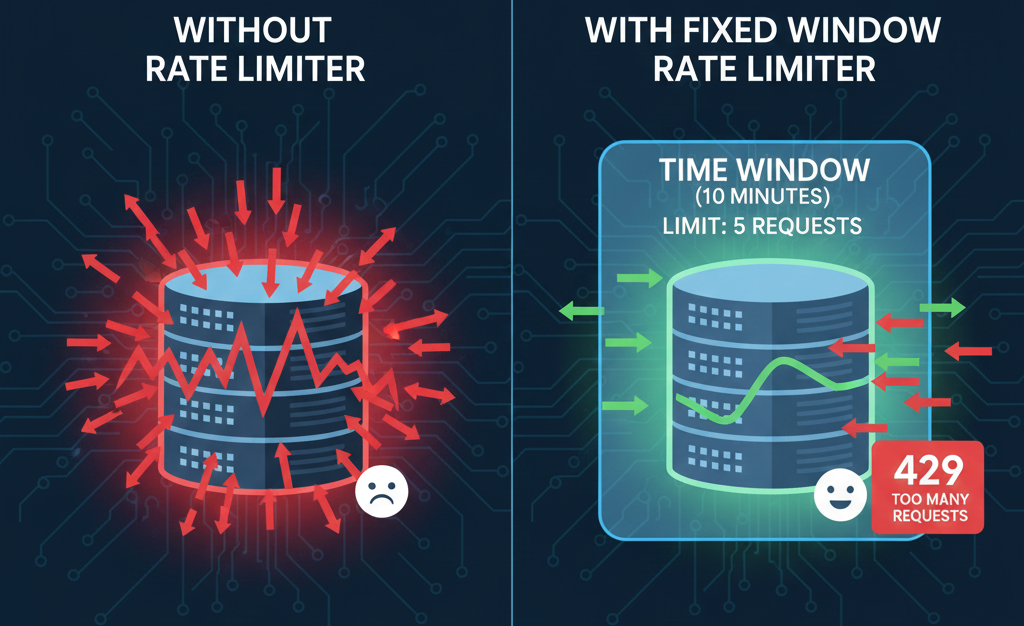
What happened without a rate limiter?
CPU usage spiked
Database queries slowed down
Report generation time increased
Other APIs sharing the same database became slower
Occasional timeouts occurred during peak usage
The issue wasn’t the overall volume - it was the uneven timing of the requests.
The system needed a way to smooth out these bursts and prevent too many report requests from arriving too close to each other.
What happened after adding a Sliding Window limiter?
A Sliding Window limiter solved this problem effectively.
Instead of looking at requests only inside a strict 1 minute window, the Sliding Window algorithm:
Divided the 1 minute window into 3 smaller segments of 20 seconds
Counted requests across the actual last 1 minute
Smoothed out inconsistent spikes
Prevented bursts from piling up too quickly
Ensured fair request distribution over time
By smoothing out the bursty traffic, the Sliding Window limiter kept the Inventory Report API reliable and prevented sudden overload.
Below is a sample implementation
// No additional package installation is required.
// Rate limiting is built into <a target="" data-router-slot="disabled" href="http://ASP.NET" type="external">ASP.NET</a> Core starting from .NET 7.
using Microsoft.AspNetCore.RateLimiting;
var builder = WebApplication.CreateBuilder(args);
<a target="" data-router-slot="disabled" href="http://builder.Services" type="external">builder.Services</a>.AddControllers();
<a target="" data-router-slot="disabled" href="http://builder.Services" type="external">builder.Services</a>.AddEndpointsApiExplorer();
<a target="" data-router-slot="disabled" href="http://builder.Services" type="external">builder.Services</a>.AddRateLimiter(options =>
{
    options.AddSlidingWindowLimiter("InventoryReportLimit", limiterOptions =>
    {
        limiterOptions.PermitLimit = 5;               // Allow 5 requests
        limiterOptions.Window = TimeSpan.FromSeconds(60); // 60-second sliding window
        limiterOptions.SegmentsPerWindow = 3;         // Split window into 3 segments
        limiterOptions.QueueLimit = 0;                // Do not queue requests
        limiterOptions.AutoReplenishment = true;      // Replenish permits automatically
    });
    options.OnRejected = async (context, cancellationToken) =>
    {
        context.HttpContext.Response.StatusCode = StatusCodes.Status429TooManyRequests;
        await context.HttpContext.Response.WriteAsync(
            "Too many report requests. Try again later.",
            cancellationToken
        );
    };
});
var app = <a target="" data-router-slot="disabled" href="http://builder.Build" type="external">builder.Build</a>();
app.UseRouting();
app.UseRateLimiter();
app.MapControllers();
<a target="" data-router-slot="disabled" href="http://app.Run" type="external">app.Run</a>();
Setting | Meaning (Sliding Window limiter) |
PermitLimit = 5 | Maximum number of allowed requests in the rolling window for one client. |
Window = 60 seconds | Total length of the sliding time window used to calculate the request rate. |
SegmentsPerWindow=3 | Number of sub‑windows that the 60‑second window is divided into (20 seconds each here). |
QueueLimit = 0 | Determines how many requests may wait after all permits are used. With QueueLimit = 0, excess requests are rejected immediately with HTTP 429, which is usually safer for slow or resource-intensive endpoints. When queueing is appropriate, QueueProcessingOrder determines whether waiting requests are processed oldest first or newest first. Oldest-first processing is generally the more predictable choice for fairness. |
AutoReplenishment = true | Controls whether the limiter automatically replenishes permits as time advances. For a sliding window limiter, replenishment occurs as segments expire and their permits become available again. Keep automatic replenishment enabled for the usual middleware scenario; only disable it when an application deliberately manages replenishment through its own scheduling approach. |
This configuration allows 5 requests in any rolling 60 second period, not just per minute block.
Handling rejected requests
Client response behavior: when a request is rejected, return HTTP 429 Too Many Requests with a clear, short response body. When the application can reliably determine when a permit will be available, include a Retry-After response header so clients can back off instead of immediately retrying. Clients should treat 429 as a signal to retry later with bounded backoff, not as a server error.
Advantages of Sliding Window rate limiter
Smooths out uneven, bursty traffic
Prevents double-burst issues at window boundaries
More accurate and fair than Fixed Window
Ideal for real-time user actions (typing, scrolling, clicking)
Reduces sudden CPU spikes
Keeps APIs responsive during peak usage
Works well for external integrations and mobile apps
When should you use a Sliding Window rate limiter?
Use this limiter when:
Traffic is bursty and unpredictable
Users perform rapid actions (typing, searching, tapping)
Partner systems send requests in uneven batches
You want a fair limit based on the actual last time period
Fixed Window is too rigid for your workload
When should you avoid using a Sliding Window rate limiter?
Avoid this limiter when:
Traffic is consistent and predictable → Fixed Window rate limiter option works better in this case
You want to allow intentional short bursts → Token Bucket rate limiter works better in this case
You want to limit concurrent requests instead of rate → Concurrency rate limiter works better in this case
Benchmark: Sliding Window Rate Limiter (Local Runtime Test)
To understand the runtime impact of the Sliding Window Rate Limiter, a local benchmark was performed using Visual Studio Diagnostic Tools.
Test Environment
Environment: Local development machine
Framework: ASP.NET Core
Monitoring: Visual Studio Diagnostic Tools (Debug mode)
Endpoint: Inventory Report API
Test Scenarios
The same load pattern was applied in both scenarios to ensure a fair comparison.
Concurrent users: 50
Traffic pattern: Continuous requests for 2 minutes
Rate limit configuration: Sliding Window – 5 requests per 1 minute
Metric Category | Metric | Without Rate Limiter | Sliding Window Rate Limiter |
CPU Usage | Peak CPU Usage | 72% | 54% |
Average CPU Usage | 35-40% | 15–25% | |
Thread Pool | Peak Threads | 45 | 25 |
Thread Starvation | Yes | No | |
Requests | Successful Requests | 100% (slow) | 12% |
Rejected (429) | 0 | 82% | |
Response Time | P95 | 9.8s | 130ms |
Note: These benchmarks were captured on a local development machine using Visual Studio Diagnostic Tools. Results may vary based on hardware, workload, and runtime configuration.
Production consideration
Consider multi-server deployment
A limiter that stores counters in each application instance cannot enforce one shared limit across a load-balanced deployment. If the same client can reach multiple servers, use a distributed rate-limiting design backed by shared state, such as Redis, so each instance evaluates the same request budget. Redis provides a practical overview in its .NET rate limiting tutorial.
Apply limits per client
For production APIs, decide what receives its own request budget before configuring the limiter. A PartitionedRateLimiter can apply separate sliding-window limits by authenticated user, API key, client IP address, host, or route. Partitioning prevents one active client or tenant from consuming the permits intended for every other client.
Summary
The Sliding Window Rate Limiter is a great choice for APIs that receive uneven, bursty traffic.
By splitting the time window into smaller segments and sliding the window continuously, it keeps your API fast, fair, and stable - even when users or systems send multiple requests in a short time.
If you want to explore other rate limiting strategies, check out the blogs on Fixed Window, Token Bucket, and Concurrency limiters.
FAQs
Q1: Can Sliding Window rate limiting work across multiple servers?
A: By default, No.
Sliding Window rate limiting works per server by default and does not synchronize across multiple servers.
To make it work across multiple servers, a distributed store like Redis is required so all instances share the same counters. We’ll explore distributed rate limiting in an upcoming blog post.
builder.Services.AddStackExchangeRedisRateLimiter(options =>
{
options.ConnectionMultiplexer =
ConnectionMultiplexer.Connect("localhost:6379");
});
Q2: How do I test if my rate limiting is working correctly?
A: Rate limiting can be verified using a unit test that sends multiple requests in quick succession and checks that the API returns 429 Too Many Requests once the configured limit is exceeded.
[Fact]
 public async Task SlidingWindowLimiter_Returns_429_On_6th_Request()
 {
     // Arrange
     var responses = new List<HttpResponseMessage>();
     // Act
     for (int i = 0; i < 6; i++)
     {
         responses.Add(await _client.GetAsync("/api/inventory-report"));
     }
     // Assert
     Assert.All(
         responses.Take(5),
         r => Assert.Equal(HttpStatusCode.OK, r.StatusCode)
     );
     Assert.Equal(
         HttpStatusCode.TooManyRequests,
         responses.Last().StatusCode
     );
 }
Q3: Can I use multiple rate limiters on the same endpoint?
A: Yes.
ASP.NET Core allows you to combine multiple rate limiters on a single endpoint.
For example, you can use:
A Sliding Window limiter to control bursty traffic
An IP-based limiter to prevent abuse from a single client
This approach provides better protection for public or high-risk APIs.
Q4: What happens to requests in the queue (QueueLimit)?
A: When the limit is reached, requests can optionally be queued instead of rejected.
Queued requests wait until permits become available. If the queue is full, new requests are rejected with HTTP 429.
For most production APIs - especially long-running ones - it is recommended to set QueueLimit = 0 and reject excess requests immediately.
References
Related Blogs

Introduction To Rate Limiting Middleware in ASP.NET Core
Discover how rate limiting middleware boosts performance in ASP.NET Core
Fixed Window Rate Limiter in ASP.NET Core
How the Fixed Window Rate Limiter keeps ASP.NET Core APIs stable and controlled.

Token Bucket Rate Limiter in ASP.NET Core: What is it and when to use it?
Token Bucket rate limiting to support burst traffic while protecting ASP.NET Core APIs from overload.