uAdvancedButton — Advanced Button for Umbraco
Every button your editors will ever need. Zero compromises.
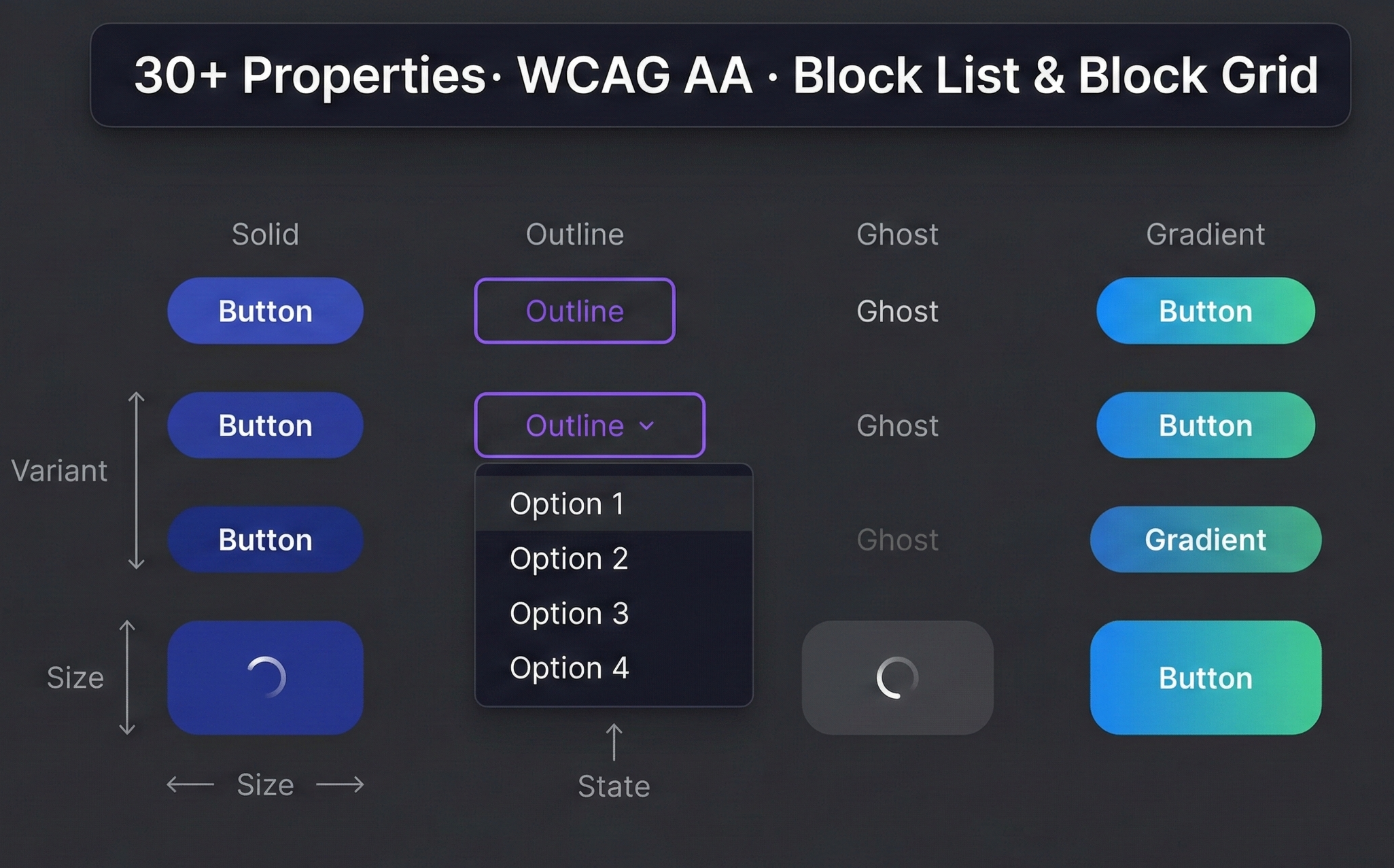
uAdvancedButton is a production-ready button and call-to-action system built natively for Umbraco 17+. It gives editors full control over every aspect of a button, from label, icon, and link type to hover animation, border radius, and shadow, all from a clean backoffice UI with zero developer intervention at content-time.
Each button is an element type with over 30 configurable properties organised into focused tabs: Content, Behavior, Layout, Style, and Dropdown. Button Groups let editors compose horizontal or vertical arrangements with configurable gap, alignment, equal-width distribution, and automatic mobile stacking — no custom CSS needed.
Key Features
Advanced technology at your fingertips
30+ Editor-Controlled Properties
Every visual and behavioural option lives in the backoffice — size, style variant, rendering mode, border radius, shadow, hover animation, icon position, link type, and more. Editors ship pixel-perfect buttons without touching code.
Accessible by Default
Full keyboard navigation, aria-haspopup, aria-expanded, aria-disabled, screen-reader labels, and WCAG AA colour-safe variants are baked in, not bolted on. Dropdown menus support Arrow keys, Home, End, Escape, and Tab out-of-the-box.
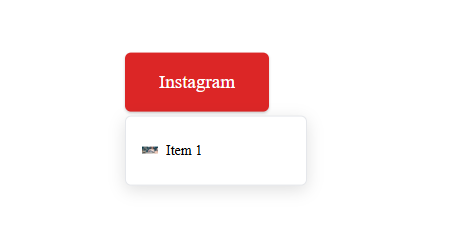
Dropdown Mode
Dropdown mode with keyboard navigation and ARIA compliance
Inbuilt Animations
6 hover animations including scale, lift, glow, pulse, slide, none, choose what fits best for your website.



Add enterprise button power to your Umbraco project in under 5 minutes.
Submission Failed