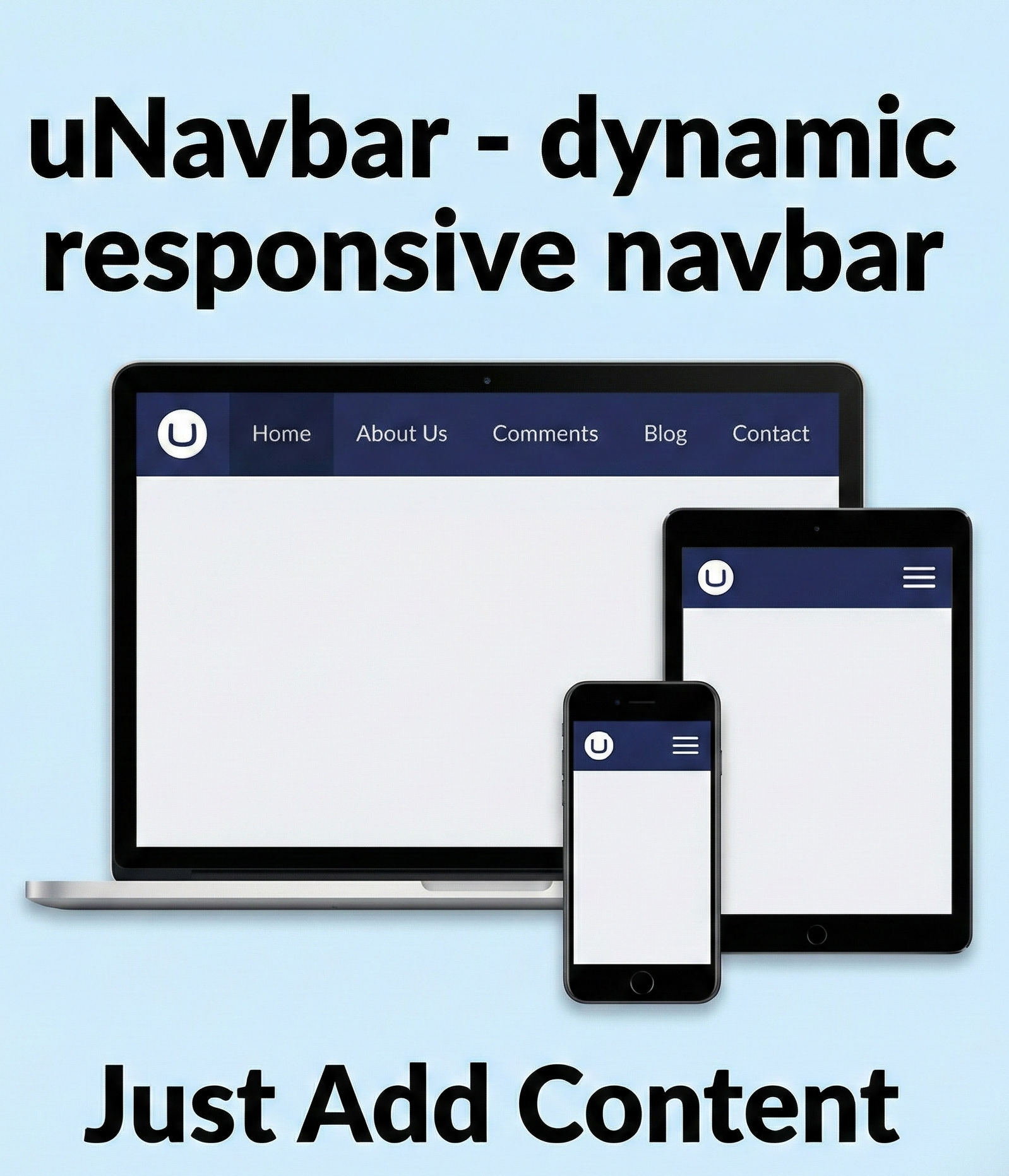
Dynamic Navigation Bar for Umbraco
Build powerful, responsive navigation without custom frontend work
Dynamic Navigation Bar is a plug-and-play Umbraco package that delivers a fully responsive, customizable navigation system with both frontend and back office support
Key Features
Advanced technology at your fingertips
Fully Responsive Navigation
Delivers a mobile-first, responsive navigation bar that adapts seamlessly across desktop, tablet, and mobile devices without additional frontend customization.
Backoffice-Driven Menu Management
Allows editors to manage navigation structure, labels, and links directly from the Umbraco backoffice, removing the need for developer involvement in routine updates.
Branding Ready Out of the Box
Supports logo and brand name configuration with a clean, reusable frontend layout, enabling consistent branding across the website with minimal setup.
Branding & Logos
Navigation Links & Sizing
Behaviors & Sticky Rules
Umbraco Navigation Engine v1.3.0
Scroll this simulator box down to test how the navbar locks sticky to the top of the container.
Product Gallery & Steps
Explore product images and follow the steps

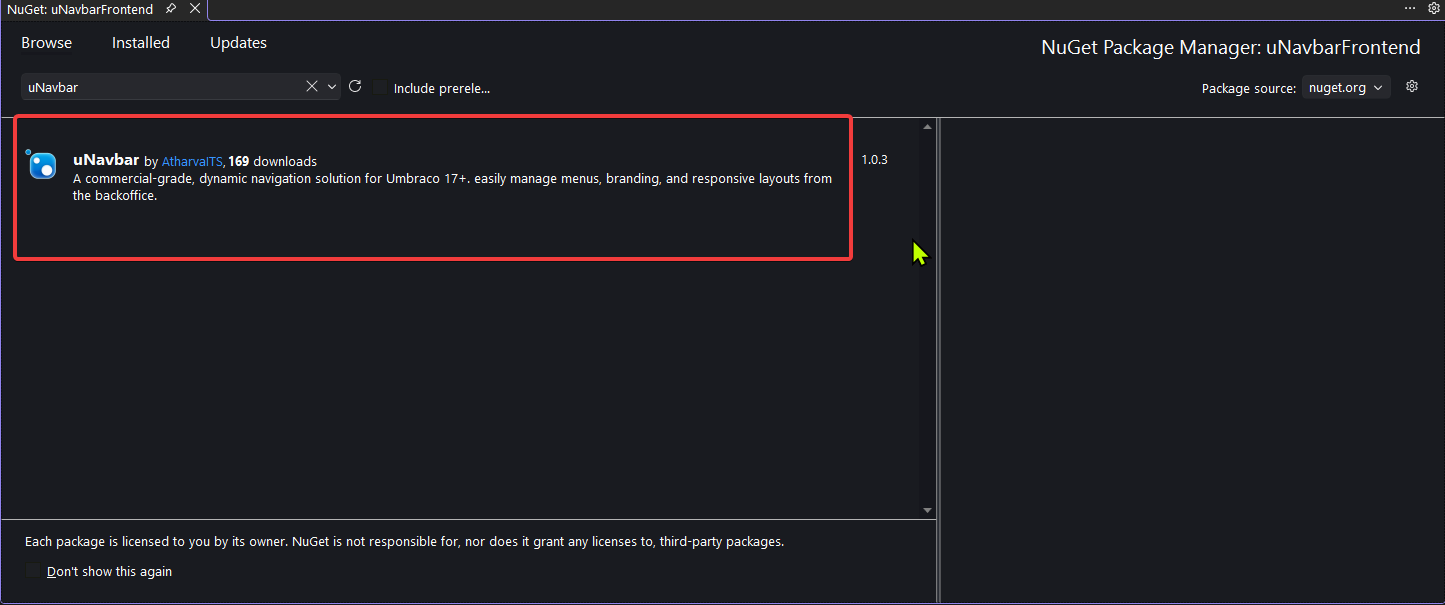
Install the uNavbar NuGet package
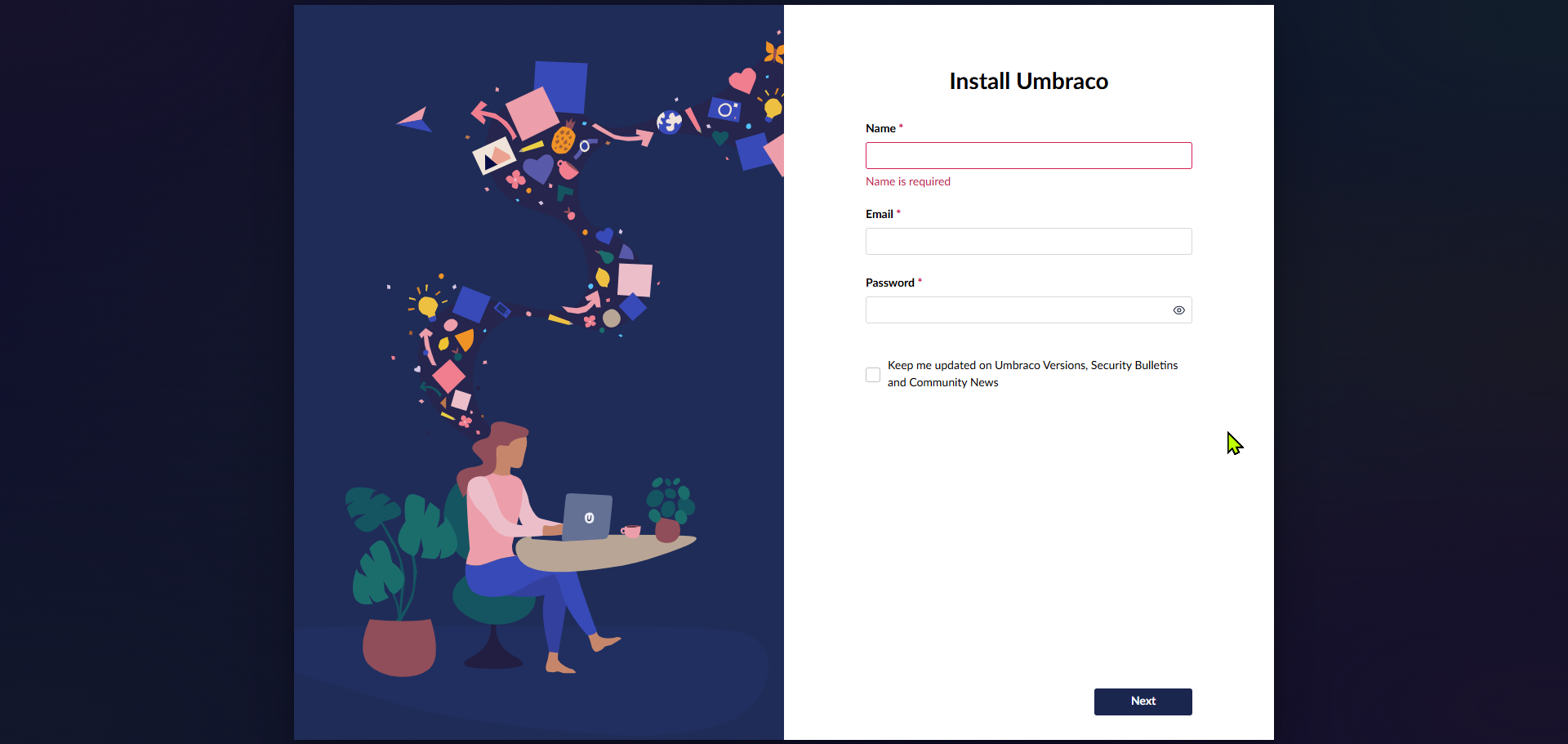
Rebuild and run the solution, then configure Umbraco
Log in to the backoffice
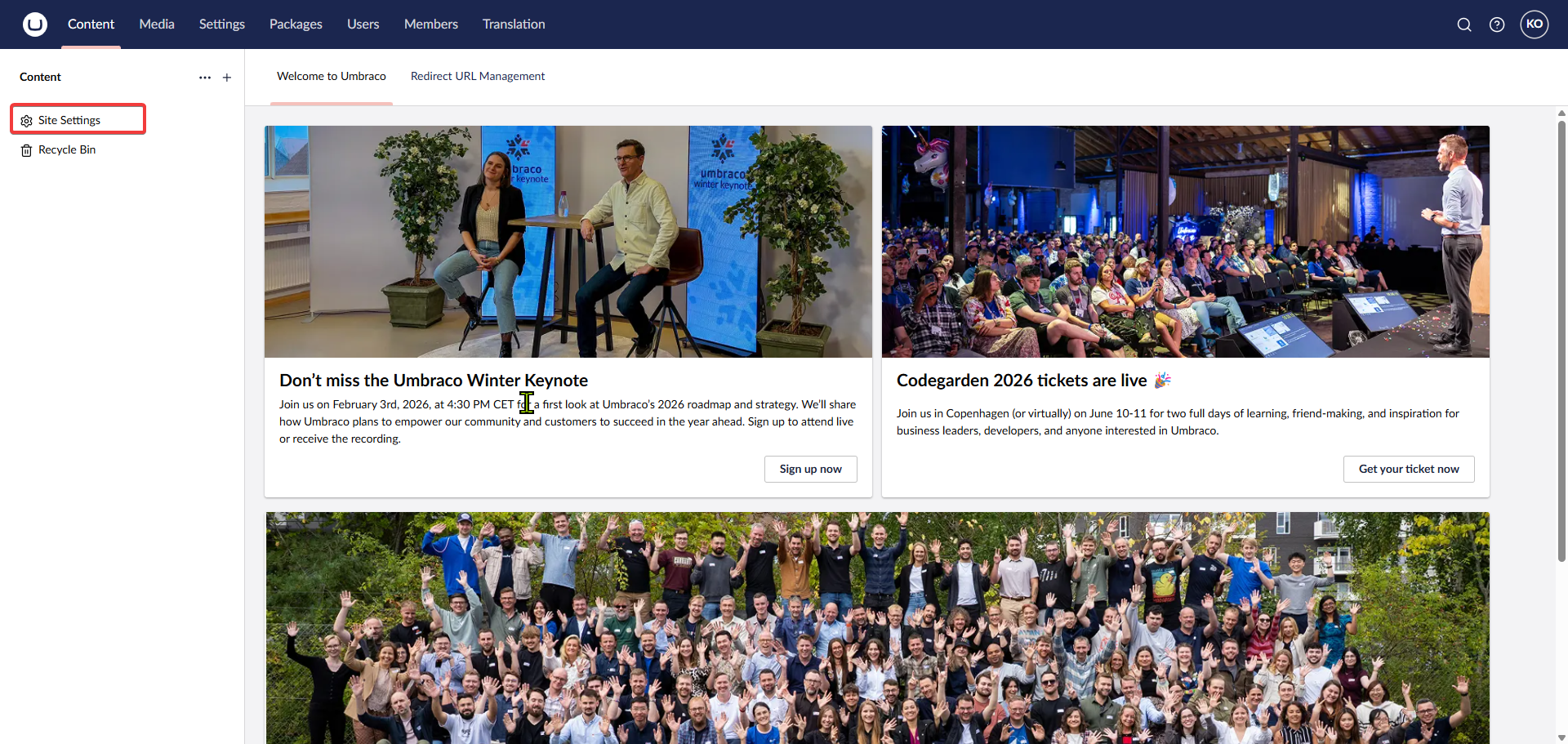
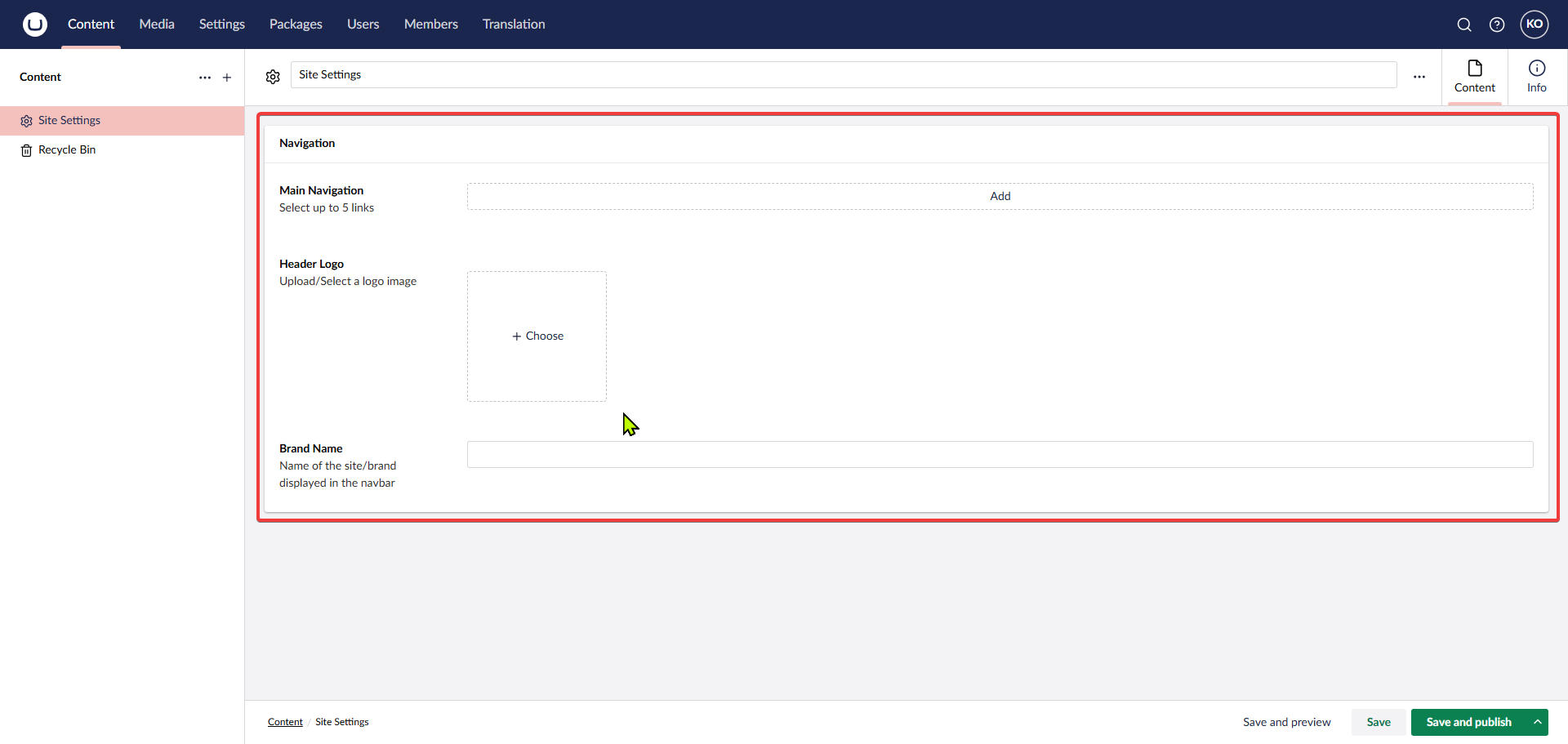
Properties of Site Settings document
Add the relevant documents to show in the Navbar
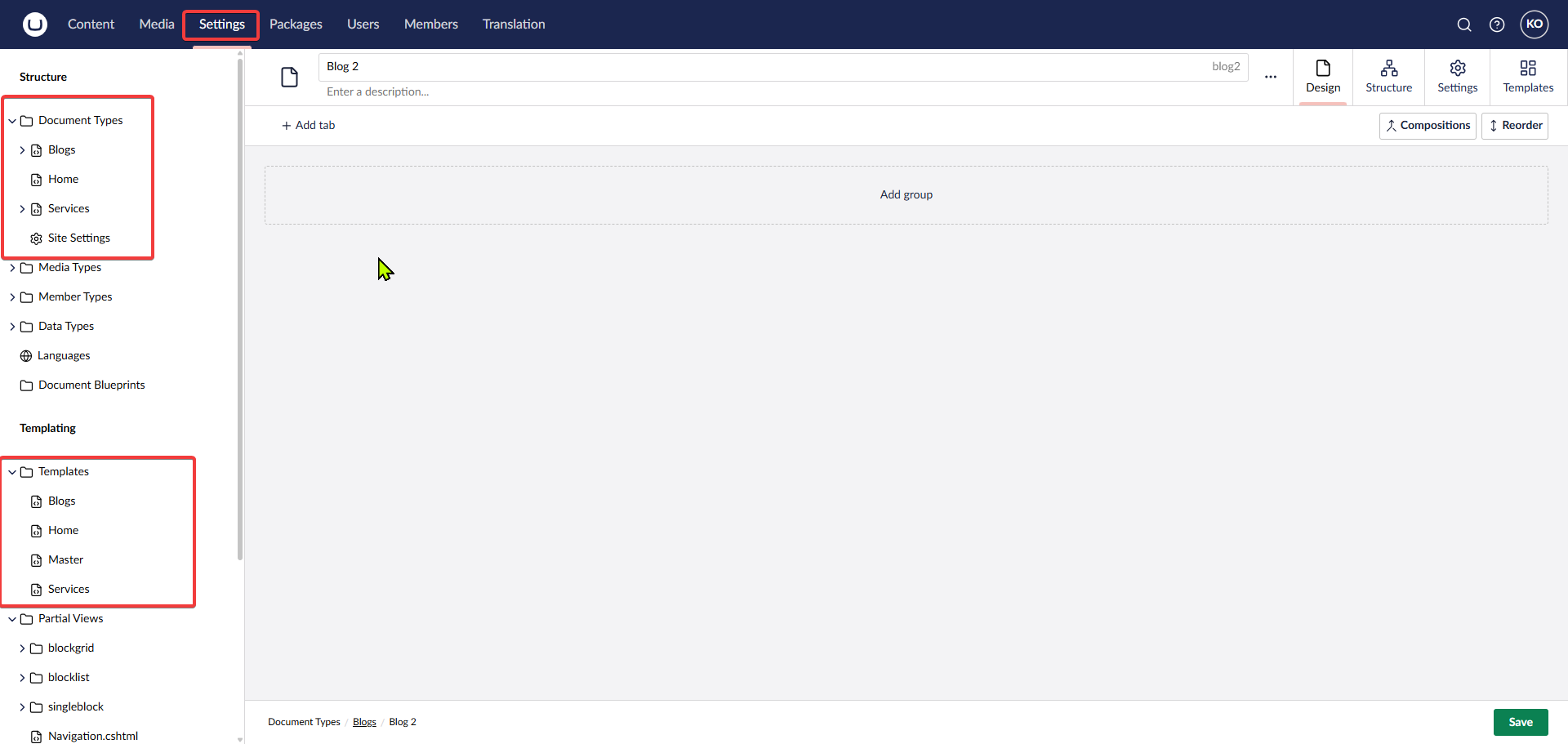
Setup Root Documents
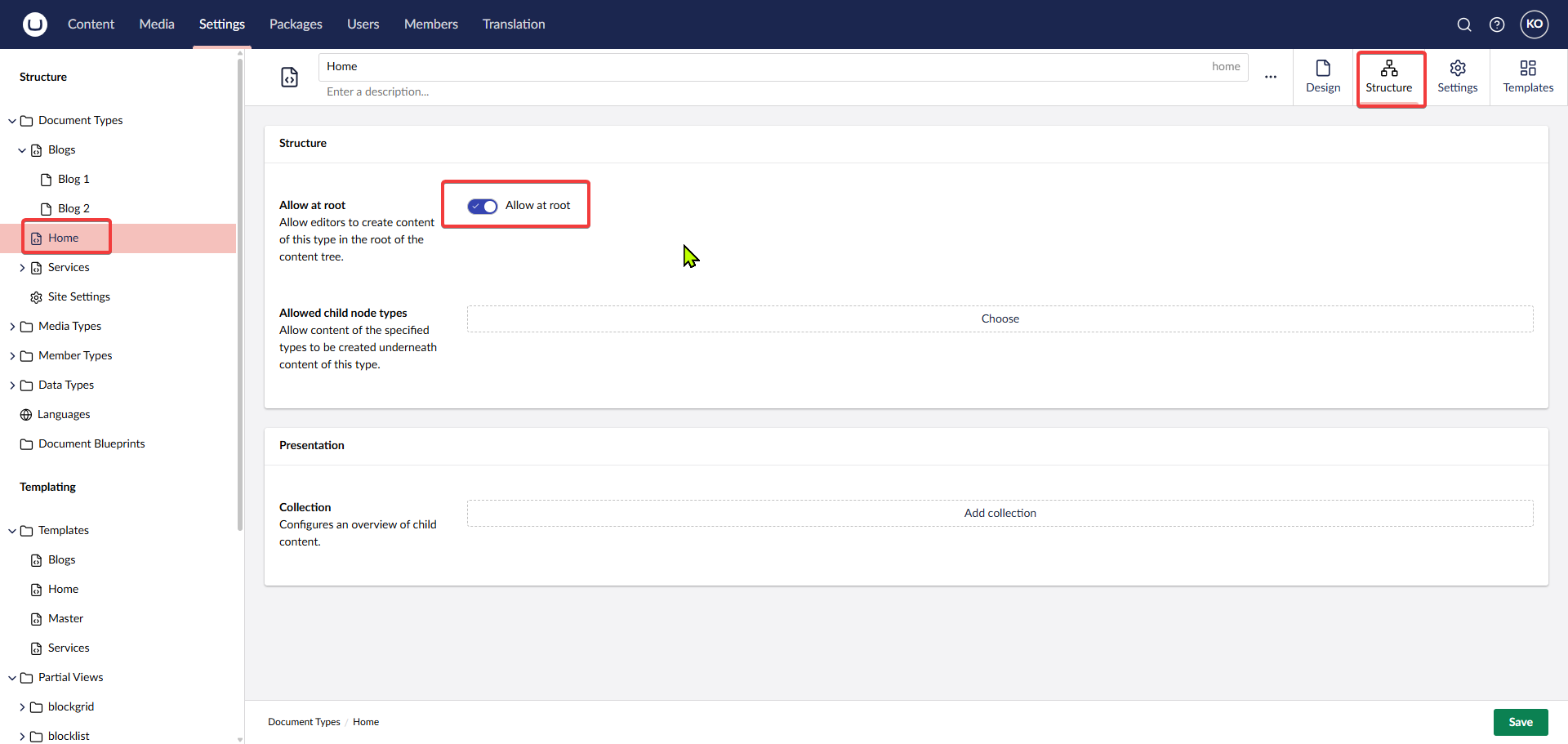
Register the documents in Content tab
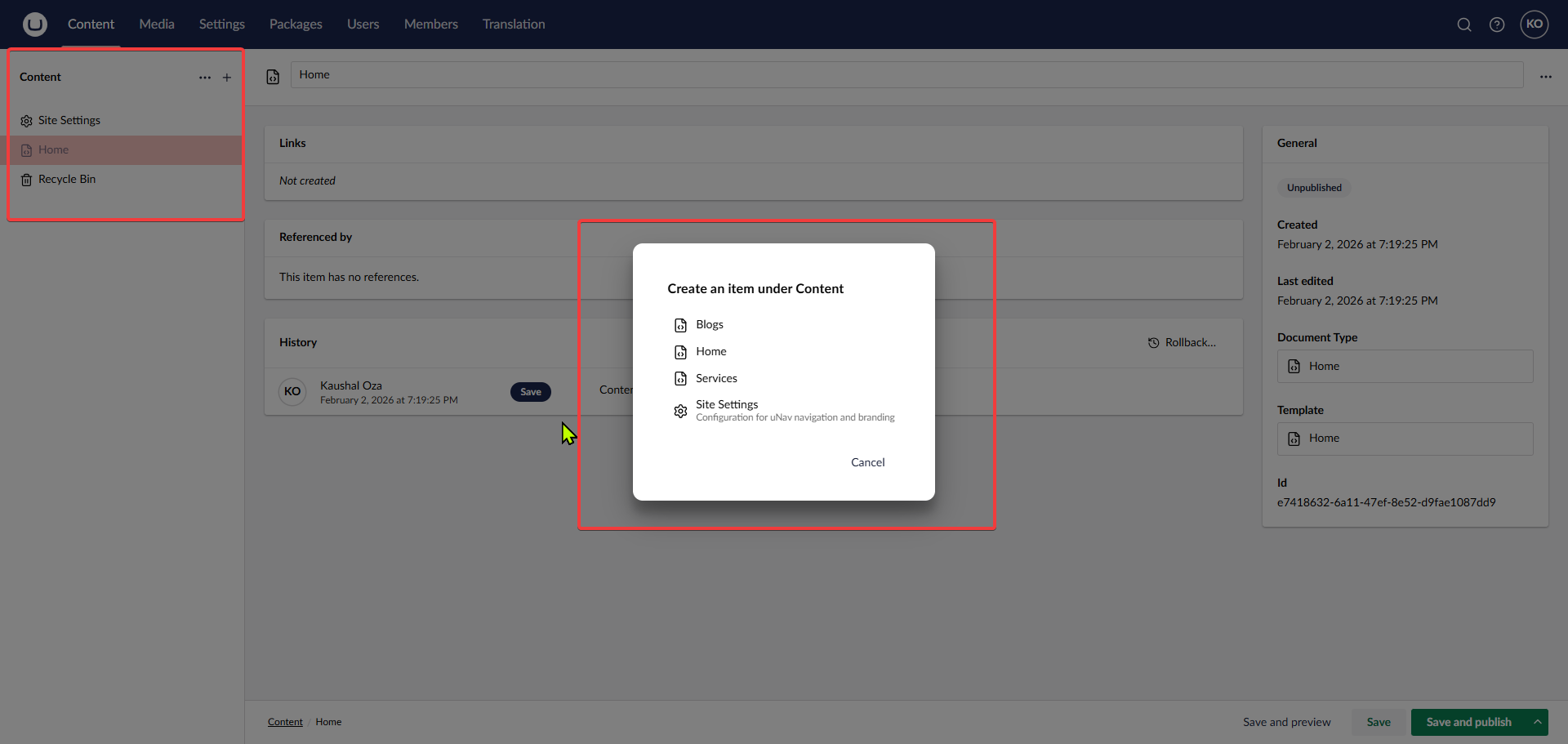
Add child document support to the root documents
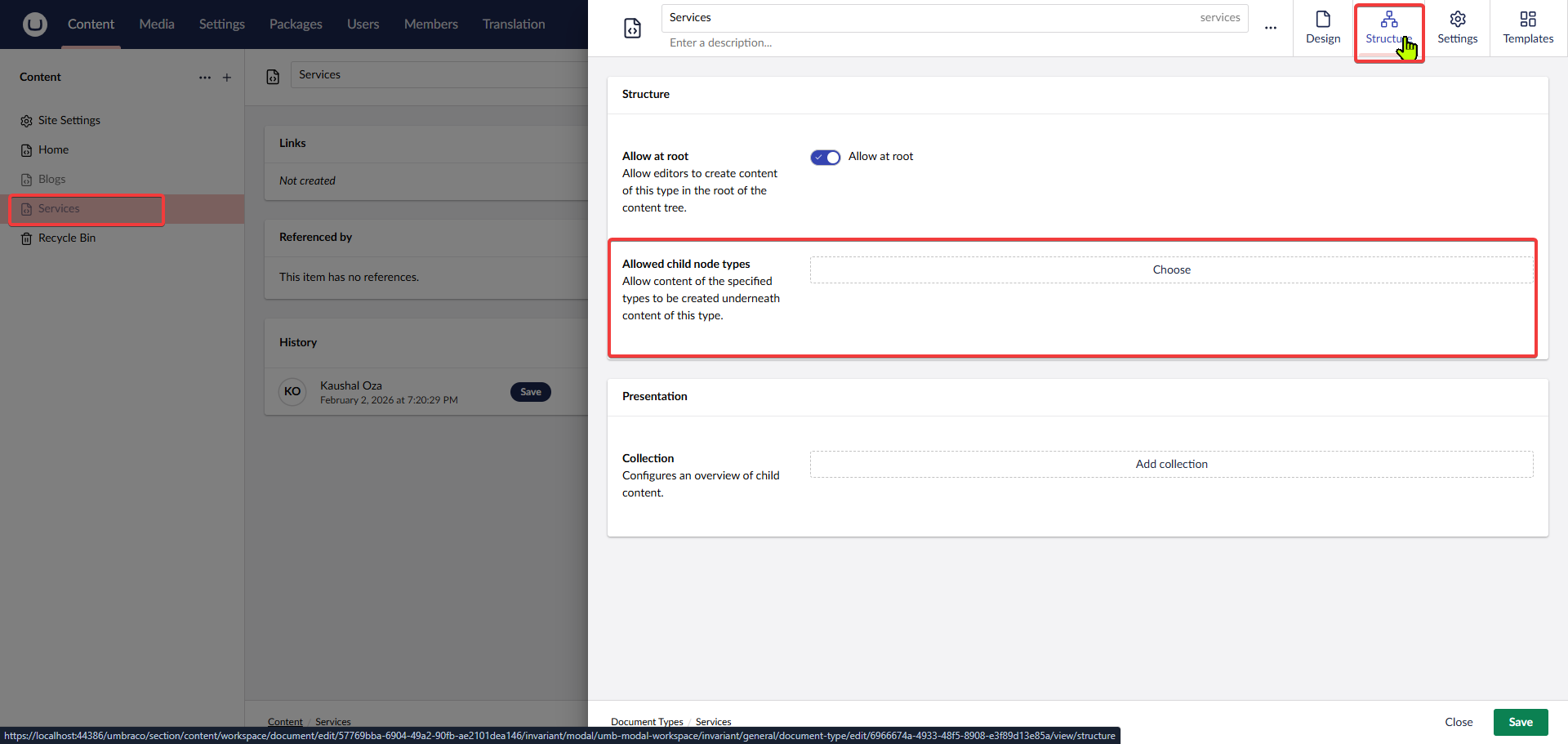
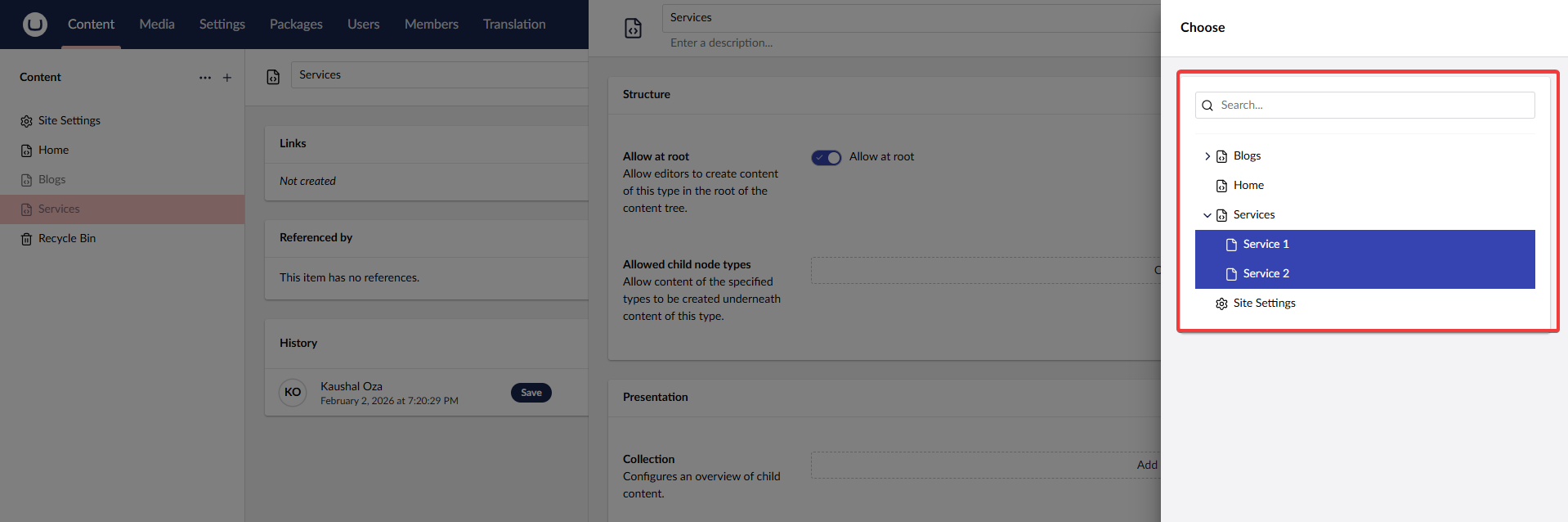
Select the appropriate child node types
Go to Content Tab
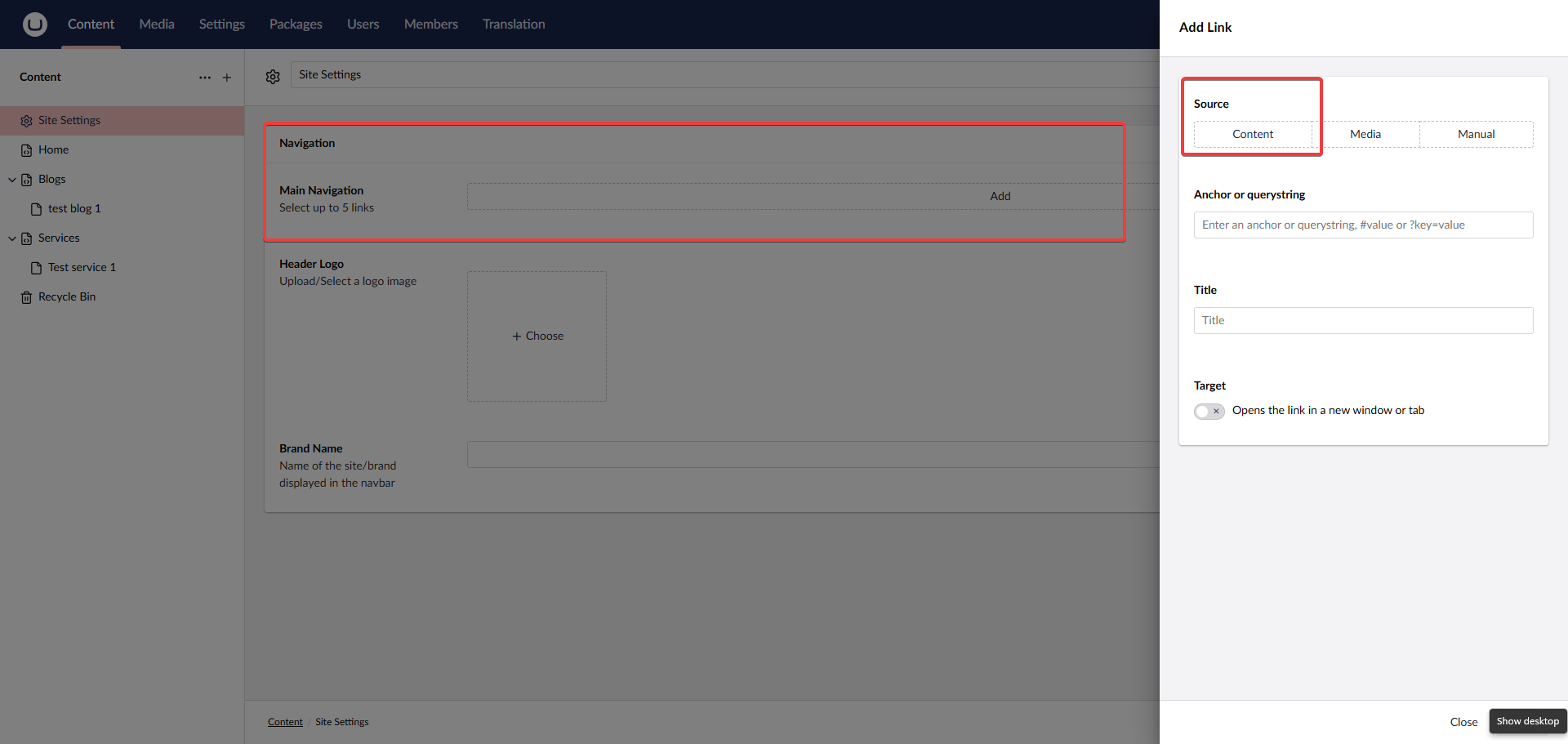
Now, open the site settings document and choose add inside choose content option to select documents that you have added
The Final Structure After Following All Steps
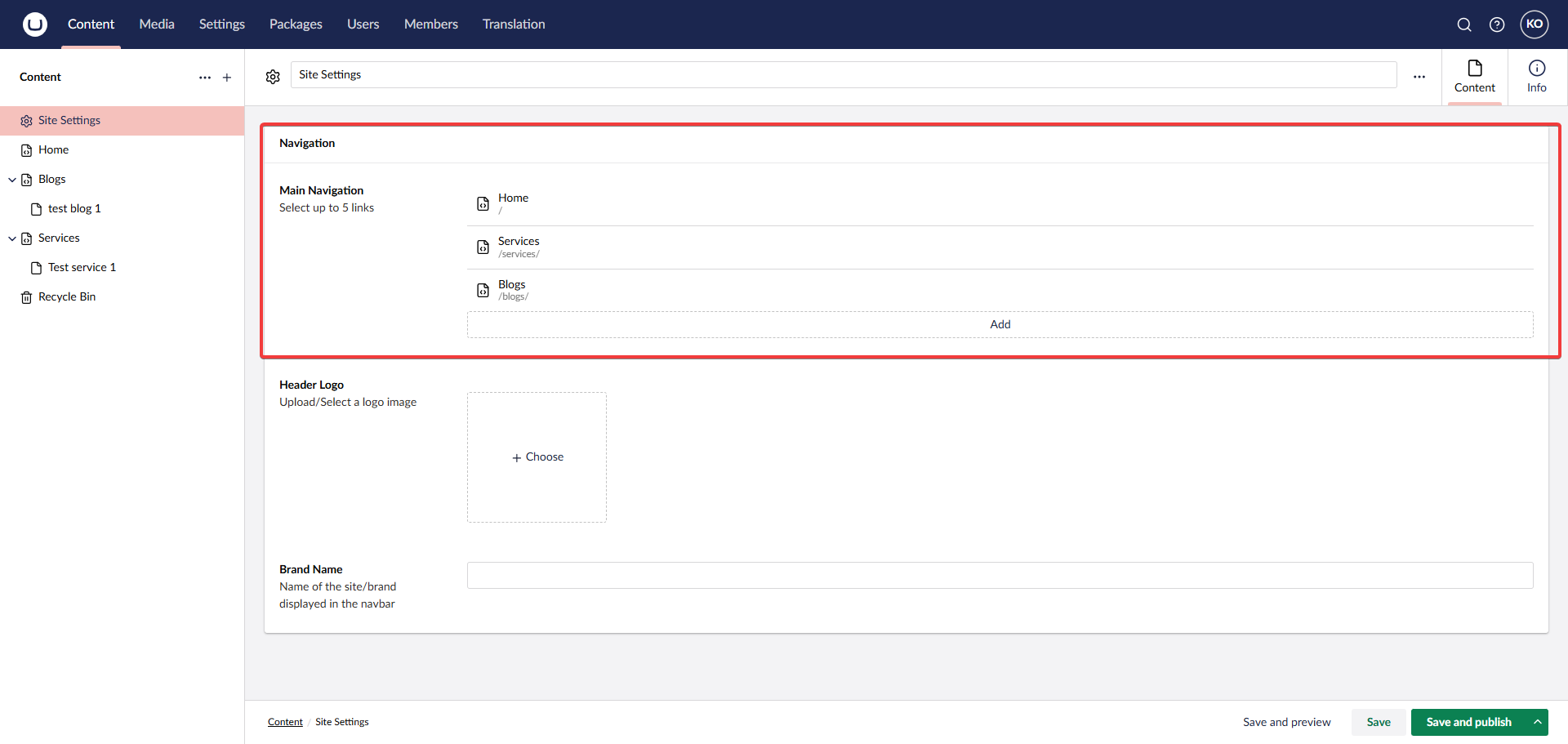
Final structure for Main Navigation property should look like this
Register the CSS and Partial Views to show the navbar
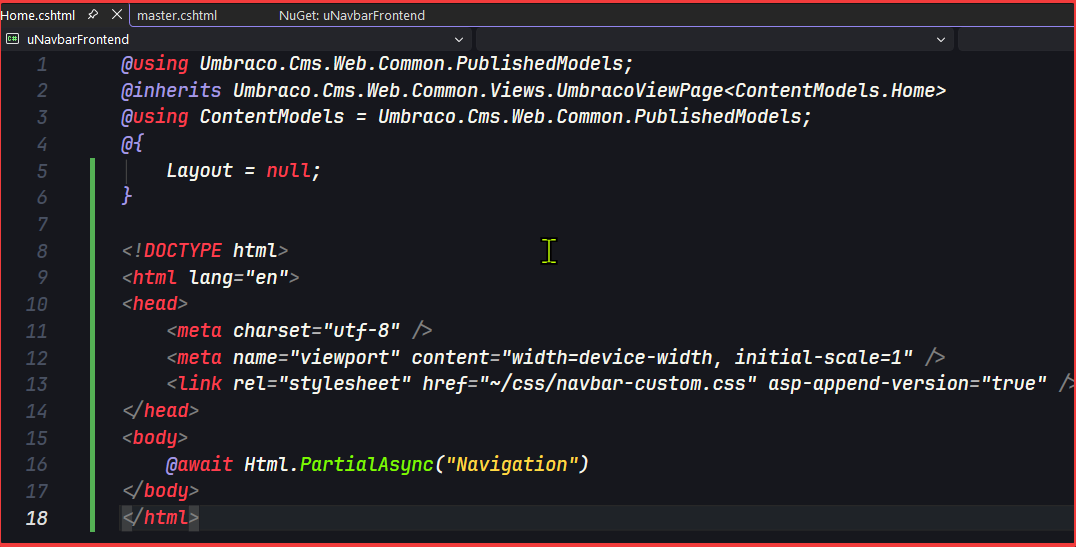
Navbar Should be now Displayed
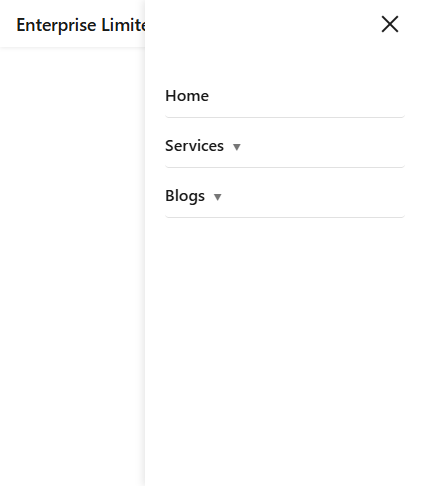
Mobile Navigation Bar
Release Notes
Release history and improvements for this product
1.4.0
Latest
Add options to give shadow to navigation bar
1.3.0
Added: Option to open dropdown navigation links by hover or click
Added: Option to change font size of the main navigation items
1.2.0
Added: Brand font selection with 5 Google Fonts options (Inter, Outfit, Roboto, Montserrat, System Default)
Added: Configurable active navigation item CSS class for custom active state styling
Fixed: Migration issue on fresh Umbraco installations
1.1.0
Added: Configurable logo position — left, center, or right alignment
Added: Sticky navbar layout support — navigation bar stays fixed while scrolling
1.0.8
Enhanced: Automated NuGet deployment workflow
No functional changes
1.0.7
Added: Community feedback form link to the documentation
1.0.6
Enhanced: Internal build and packaging improvements
No functional changes
1.0.5
Fixed: Documentation images not rendering correctly on NuGet.org
1.0.4
Fixed: Security vulnerabilities identified in earlier releases
Removed: Unnecessary authentication check from the navbar rendering logic
1.0.3
Fixed: Stability issues in the migration runner on certain Umbraco configurations
Enhanced: Documentation with correct asset image URLs
1.0.1
Fixed: Logo media picker rejecting certain allowed file types
Enhanced: Setup documentation with step-by-step backoffice screenshots
1.0.0
Added: Initial release of uNavbar for Umbraco 17+
Added: Dynamic navigation management via the auto-provisioned Site Settings content node
Added: Logo upload and brand name configuration from the backoffice
Added: Responsive navigation bar with mobile hamburger menu support
Add a Professional Navigation Bar in Minutes
Submission Failed