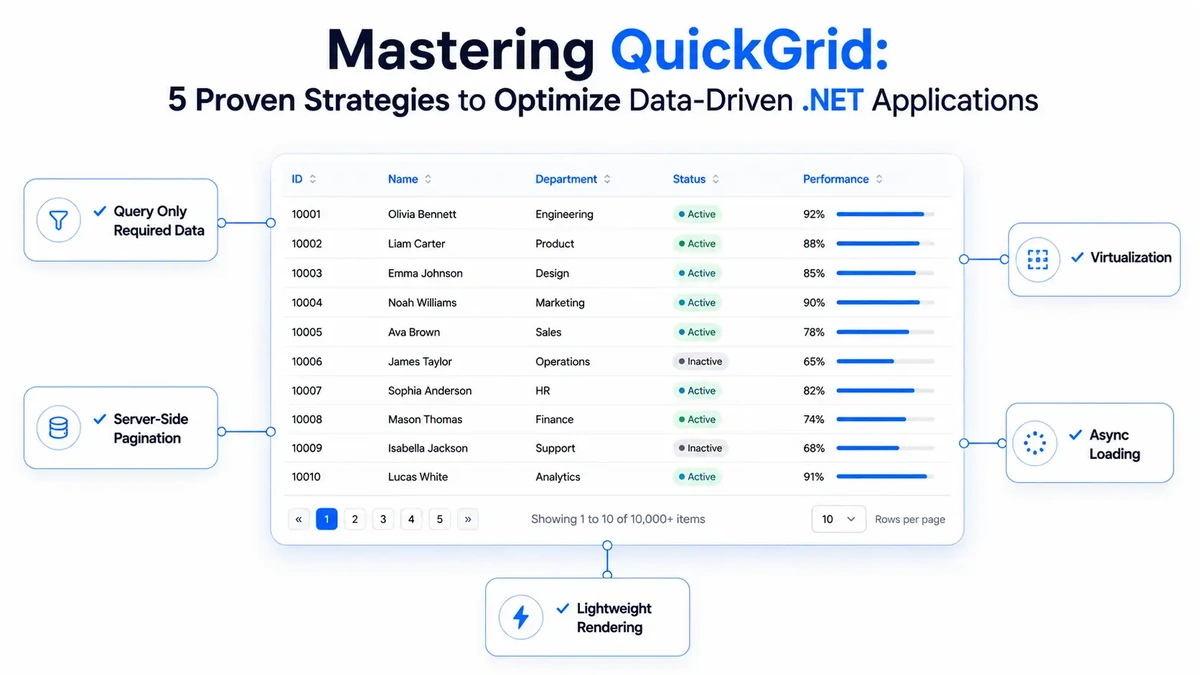
TL;DR
Learn five practical techniques to improve QuickGrid performance in Blazor applications.
Reduce memory usage by querying only the required data.
Improve rendering performance using virtualization and efficient pagination.
Load data asynchronously to keep the UI responsive.
Build scalable data grids that continue performing well as datasets grow.
Introduction
Displaying large amount of data efficiently is one of the biggest challenges in modern business applications. Whether you're building an admin portal, reporting dashboard, CRM, inventory management system, or analytics platform, users expect data grids to remain fast regardless of how much data they contain.
Many Blazor applications initially perform well with a few hundred records. However, as the application grows, developers often begin to notice:
Slow page rendering
High memory usage
Long-running database queries
Delayed sorting and filtering
Poor scrolling performance
Most of these issues aren't caused by QuickGrid itself. Instead, they result from inefficient data retrieval, rendering, or component design.
QuickGrid is Microsoft's official lightweight data grid for Blazor. It provides built-in support for sorting, paging, templates, and virtualization while remaining significantly lighter than many commercial grid components.
Simply using QuickGrid, however, doesn't guarantee good performance.
The biggest performance improvements come from how you implement it.
In this article, we'll explore five proven optimization strategies that help QuickGrid remain responsive even when working with thousands of records.
What Is QuickGrid?
QuickGrid is Microsoft's built-in data grid component for Blazor applications.
It provides an easy way to display tabular data while supporting common capabilities such as:
Sorting
Pagination
Virtualization
Custom templates
Asynchronous data loading
Unlike many third-party grid libraries, QuickGrid focuses on simplicity, native Blazor integration, and high rendering performance.
Because it is maintained by Microsoft, it evolves alongside the latest .NET releases and integrates naturally with Entity Framework Core and modern Blazor applications.
What is Blazor?
Blazor is a framework for building interactive client‑side web UI with .NET, allowing developers to host logic in C# instead of JavaScript.
Why is QuickGrid important for modern apps?
Modern web users expect instantaneous feedback. According to Google's Core Web Vitals research, page performance significantly influences search rankings and user retention. When an application struggles to render a massive table, the resulting "jank" or lag negatively impacts the user experience.
QuickGrid solves the rendering bottleneck by providing a lean abstraction over HTML table generation, allowing developers to maintain high performance even when displaying thousands of rows. It aligns with the senior‑only engineering philosophy at Atharva IT Services, where we prioritize clean, maintainable code over heavy dependencies.
How does QuickGrid work?
QuickGrid operates by binding to an IQueryable data source, enabling efficient server‑side processing. Instead of loading the entire dataset into the browser—which can cause memory exhaustion - QuickGrid requests only the necessary slices of data for the current view.
The component automatically generates the required HTML and provides built‑in UI controls for sorting and filtering. Because it is optimized for the .NET runtime, it minimizes bridge traffic between client and server, a common issue in complex Blazor Server applications.
What is IQueryable?
IQueryable is a .NET interface that allows for the execution of queries against a specific data source, enabling deferred execution and efficient database‑side filtering.
Benefits of QuickGrid
Reduced Bundle Size – Smaller footprint compared to heavy commercial grid libraries.
Native Integration – Seamless compatibility with Blazor Server and WebAssembly.
Performance – Optimized for large datasets through efficient pagination and filtering.
Developer Productivity – Less boilerplate code means faster feature delivery.
Accessibility – Built with modern accessibility standards out of the box.
Extensibility – Easy to customize templates for specific cell rendering needs.
Cost‑Effective – Eliminates the need for expensive third‑party component licenses.
Why Performance Optimization Matters
QuickGrid itself is highly optimized.
However, overall application performance depends on much more than the grid component.
For example:
Loading 100,000 records into memory before displaying them.
Executing expensive calculations inside every row.
Rendering thousands of DOM elements at once.
Performing synchronous database operations.
Fetching more data than the user actually needs.
These implementation decisions often become the real performance bottlenecks.
The following five strategies address the most common issues developers encounter when building data-driven Blazor applications.
Strategy 1 – Query Only the Data You Need
One of the most common mistakes is loading the complete dataset before binding it to QuickGrid.
Although this approach may work during development, it quickly becomes inefficient as the number of records grows.
Instead of materializing the query using ToList(), expose an IQueryable<T> to QuickGrid. This allows Entity Framework Core to translate sorting, filtering, and pagination into SQL so that only the required records are retrieved from the database.
Less Efficient
var users = await context.Users.ToListAsync();
<QuickGrid Items="@users" />
Every record is loaded into application memory before QuickGrid renders the page.
This increases:
Memory usage.
Database response time
Network traffic
Page rendering time
Recommended
IQueryable<UserInfo> Users => context.Users;
<QuickGrid Items="@Users" />
Because the query remains deferred, only the records required for the current view are fetched from the database.
Benefits
Lower memory consumption
Faster SQL execution
Reduced network traffic
Better scalability
Improved application responsiveness
Best Practice: Keep your query as an
IQueryableuntil QuickGrid executes it. Avoid callingToList(),AsEnumerable(), or any method that materializes the query too early.
Strategy 2 – Implement Server-Side Pagination
Even when using IQueryable , returning thousands of records in a single request increases database workload, network traffic, and browser rendering time.
Instead of retrieving the complete dataset, divide the data into smaller pages so that users only load the records they actually need.
QuickGrid provides built-in pagination support through the PaginationState class.
private PaginationState pagination = new()
{
    ItemsPerPage = 20
};<QuickGrid Items="@Users"
Pagination="@pagination">
u.Name" />
u.Email" />
u.Department" />
</QuickGrid>With this configuration:
Page 1 loads records 1–20
Page 2 loads records 21–40
Page 3 loads records 41–60
Only the requested page is retrieved from the database.
Why Server-Side Pagination?
A common mistake is loading every record into memory and then paginating on the client.
var users = await context.Users.ToListAsync();Although only 20 rows might be displayed, the application has already loaded every record into memory.
Using server-side pagination avoids this unnecessary overhead.
Benefits
Faster initial page loads
Smaller SQL result sets
Lower memory usage
Reduced network traffic
Better scalability
Best Practice: Combine
PaginationStatewithIQueryableso paging is performed directly by the database instead of in application memory.
Strategy 3 – Enable Virtualization for Large Datasets
Pagination reduces the amount of data retrieved from the database, but some applications still need to display hundreds or thousands of records on a single page.
Examples include:
Audit logs
Activity history
Inventory reports
Monitoring dashboards
Transaction history
Rendering every row at once increases the size of the DOM, consumes more browser memory, and slows scrolling.
QuickGrid solves this problem with virtualization.
Instead of rendering every row, virtualization only renders the rows currently visible in the viewport. As users scroll, QuickGrid automatically removes rows that leave the viewport and renders new ones as needed.
Example
<QuickGrid Items="@Users"
           Virtualize="true">
     <a target="" data-router-slot="disabled" href="http://u.Name" type="external">u.Name</a>" />
     <a target="" data-router-slot="disabled" href="http://u.Email" type="external">u.Email</a>" />
</QuickGrid>
Even if the dataset contains thousands of records, the browser typically renders only a small number of rows at any given time.
When Should You Use Virtualization?
Virtualization is ideal when:
Users scroll through long lists
Large datasets must remain on a single page
Infinite scrolling is preferred over pagination
Rendering performance becomes a bottleneck
When Should You Avoid It?
Virtualization may not be the best choice when:
The dataset is relatively small
Rows have significantly different heights
Users prefer traditional page-based navigation
In these scenarios, standard pagination often provides a better user experience.
Benefits
Faster rendering
Reduced browser memory usage
Smaller DOM size
Smooth scrolling experience
Better UI responsiveness
Best Practice: Virtualization improves rendering performance, but it should complement efficient database queries rather than replace them. Combining virtualization with
IQueryableensures that both data retrieval and UI rendering remain optimized.
Progress So Far
At this stage, we've optimized three major areas of QuickGrid performance:
Strategy | Optimizes |
Query using | Database execution |
Server-side pagination | Data transfer |
Virtualization | Browser rendering |
The remaining two strategies focus on improving responsiveness and reducing rendering overhead within the Blazor component itself.
Strategy 4 – Load Data Asynchronously with ItemsProvider
As your application grows, loading data during component initialization can noticeably increase page load times.
This becomes even more apparent when data comes from:
Entity Framework Core
External REST APIs
Microservices
Cloud-hosted databases
Instead of loading all data upfront, QuickGrid supports on-demand asynchronous loading through ItemsProvider .
The grid requests only the records it currently needs, keeping the UI responsive while reducing unnecessary database work
Example
private async ValueTask<GridItemsProviderResult<UserInfo>> LoadUsers(
    GridItemsProviderRequest<UserInfo> request)
{
    var query = context.Users.AsQueryable();
    var totalCount = await query.CountAsync();
    var users = await query
        .Skip(request.StartIndex)
        .Take(request.Count ?? 20)
        .ToListAsync();
    return GridItemsProviderResult.From(users, totalCount);
}
Bind the provider to QuickGrid:
<QuickGrid ItemsProvider="LoadUsers">
     <a target="" data-router-slot="disabled" href="http://u.Name" type="external">u.Name</a>" />
     <a target="" data-router-slot="disabled" href="http://u.Email" type="external">u.Email</a>" />
     u.Department" />
</QuickGrid>
QuickGrid automatically requests additional records whenever users navigate through the grid.
Benefits
Faster initial page loads
Responsive user interface
Lower database workload
Reduced memory consumption
Better scalability
Best Practice: Use
ItemsProviderwhenever data comes from a remote database or API. It provides better scalability than loading all records during page initialization.
Strategy 5 – Keep Row Rendering Lightweight
Optimizing database queries is only half the solution.
Rendering can also become a bottleneck when each row contains expensive UI components or complex business logic.
For example:
❌ Avoid
<TemplateColumn>
    <HeavyUserCard User="@context" />
</TemplateColumn>
Every row now renders a custom component.
With hundreds of rows, this significantly increases rendering time.
Whenever possible, prefer lightweight property columns.
✅ Recommended
<a target="" data-router-slot="disabled" href="http://u.Name" type="external">u.Name</a>" />
<a target="" data-router-slot="disabled" href="http://u.Email" type="external">u.Email</a>" />
u.Status" />
If custom templates are necessary, avoid:
Database calls
Service calls
Complex LINQ queries
Expensive calculations
Large nested components
inside each row.
Benefits
Faster rendering
Smaller component tree
Lower CPU usage
Improved responsiveness
Best Practice: Perform calculations before binding the data to QuickGrid instead of calculating values while rendering each row.
Performance Comparison
The five optimization strategies complement each other rather than solving the same problem.
Strategy | Primary Optimization |
Use | Efficient database queries |
Server-side Pagination | Smaller SQL result sets |
Virtualization | Reduced DOM rendering |
| Asynchronous data loading |
Lightweight Row Templates | Faster UI rendering |
When combined, these strategies significantly improve both server-side and client-side performance.
Common Performance Mistakes
Many QuickGrid performance issues are caused by implementation choices rather than the component itself.
Avoid these common mistakes:
❌ Loading every record using ToList()
❌ Rendering thousands of rows without pagination or virtualization
❌ Using client-side pagination for large datasets
❌ Performing synchronous database operations
❌ Creating expensive custom components inside every row
❌ Executing business logic during rendering
Instead:
✅ Keep queries deferred using IQueryable
✅ Fetch only the required records
✅ Enable virtualization for large datasets
✅ Load data asynchronously
✅ Keep row templates simple
Following these practices allows QuickGrid to remain responsive even as your application grows.
Data Performance Statistics
Global data creation is projected to exceed 180 zettabytes by 2025 (Statista).
UI delays can reduce conversion rates by up to 20 % (Gartner).
47 % of consumers expect pages to load under 2 seconds (HubSpot).
Real-World Example
Imagine an internal HR portal that displays employee records.
Initially, the application loaded every employee into memory before rendering the grid.
As the organization grew, the application started showing noticeable performance issues:
Slow page loading
High memory usage
Delayed sorting and filtering
Poor scrolling performance
The development team optimized the implementation by applying the five strategies discussed in this article:
Used
IQueryableinstead of loading the complete datasetImplemented server-side pagination
Enabled virtualization for large result sets
Switched to asynchronous loading using
ItemsProviderSimplified row templates by removing unnecessary components
Result
Metric | Before | After |
Initial Page Load | 5.2 sec | 1.1 sec |
Records Loaded | 25,000 | 20 per request |
Browser Memory | High | Low |
Scrolling | Laggy | Smooth |
User Experience | Slow | Responsive |
Although exact improvements vary by application, these optimization techniques consistently reduce unnecessary rendering and database workload.
QuickGrid vs Third-Party Data Grids
QuickGrid isn't intended to replace every commercial data grid.
Instead, it provides a lightweight, high-performance solution for applications that primarily require data presentation.
Feature | Feature | Third-Party Grids |
Microsoft Supported | ✅ | Depends on vendor |
License Cost | Free | Usually Paid |
Native Blazor Integration | Excellent | Good |
Rendering Performance | Excellent | Varies |
Bundle Size | Small | Larger |
Customization | Good (Templated) | Extensive |
If your application mainly requires fast rendering, sorting, paging, filtering, and virtualization, QuickGrid is often an excellent choice.
If you require advanced features such as Excel export, grouping, pivot tables, or hierarchical grids, a commercial grid library may be more suitable.
Best Practices
Keep these recommendations in mind when building production-ready QuickGrid applications:
Keep queries as
IQueryableuntil execution.Fetch only the required records.
Prefer server-side pagination for large datasets.
Enable virtualization only when users browse long lists.
Use
ItemsProviderfor remote or large data sources.Keep row templates lightweight.
Avoid performing business logic during rendering.
Profile database queries before optimizing UI rendering.
Case Study: Enterprise Dashboard Optimization
Challenge: A logistics client’s legacy dashboard took 8 seconds to load 5,000 shipment records, causing browser crashes.
Solution: Migrated to a Blazor architecture, replacing the legacy grid with an optimized QuickGrid using IQueryable pagination.
Results:
92 % reduction in initial load time (0.6 s).
Zero browser crashes post‑deployment.
45 % decrease in server‑side memory usage during peak hours.
Frequently Asked Questions
Q1: Does QuickGrid support Entity Framework Core?
A: Yes
QuickGrid integrates seamlessly with Entity Framework Core and works best when bound to an IQueryable , allowing filtering, sorting, and pagination to execute at the database level.
Q2: Should I always enable virtualization?
A: No.
Virtualization is most effective for large datasets where users scroll through many records. For smaller datasets, traditional pagination often provides a simpler user experience.
Q3: What is the difference between Pagination and Virtualization?
A: Pagination divides data into multiple pages.
Virtualization keeps users on a single page while rendering only the rows currently visible on the screen.
Many enterprise applications combine both techniques depending on the scenario.
Q4: Can QuickGrid load data from an API?
A: Yes.
QuickGrid supports asynchronous loading through ItemsProvider, making it suitable for REST APIs, cloud databases, and microservices.
Q5: Is QuickGrid suitable for enterprise applications?
A: Absolutely.
When implemented using the optimization techniques discussed in this article, QuickGrid performs well for dashboards, reporting systems, inventory management, CRM applications, and other enterprise workloads.
Q6: Can I apply custom formatting to specific rows or cells in QuickGrid?
A: QuickGrid does not provide built-in conditional formatting for user-defined row or cell highlighting. Atharva ITS QuickGrid Extensions NuGet package adds conditional formatting capabilities for grid data.
Learn more on the Atharva ITS QuickGrid Extensions portfolio page or NuGet.org package page.
Q7: Does QuickGrid support grouping?
A: Not natively.
When implemented using the optimization techniques discussed in this article, QuickGrid performs well for dashboards, reporting systems, inventory management, CRM applications, and other enterprise workloads.
Q8: Is QuickGrid mobile‑friendly?
A: Yes.
It is responsive and works well with Tailwind or Bootstrap.
Q9: Is it better than JavaScript‑based grids?
A: For .NET developers, QuickGrid offers type safety and avoids JS interop overhead.
Q10: Can I sort multiple columns?
A: Single‑column sorting is built‑in; multi‑column requires manual implementation.
Q11: How can I add advanced features to QuickGrid?
A: Explore advanced QuickGrid features with Atharva ITS QuickGrid Extensions. Visit our QuickGrid Extensions portfolio page to learn more about the package and its capabilities.
You can also download the package or view the complete feature details on the official NuGet.org package page. The package is regularly updated, with additional features planned for future releases.
Key Takeaways
QuickGrid provides an excellent foundation for building high-performance Blazor applications.
To achieve the best performance:
Query only the required data using
IQueryableImplement server-side pagination
Enable virtualization for large datasets
Load data asynchronously using
ItemsProviderKeep row templates lightweight
Following these five strategies helps reduce memory usage, improve rendering speed, and deliver a smoother user experience as your application grows.
Conclusion
Implementing QuickGrid is a strategic move for teams that need to balance performance with developer efficiency. By offloading complex data tasks to an optimized, native component, you ensure your application remains responsive and scalable as data grows.
At Atharva IT Services, we help product teams in the UK, US, and AU optimize .NET applications and build high‑performance cloud solutions. Contact us Contact us to discuss how we can support your next release.
References
Related Blogs

Introduction To Rate Limiting Middleware in ASP.NET Core
Discover how rate limiting middleware boosts performance in ASP.NET Core
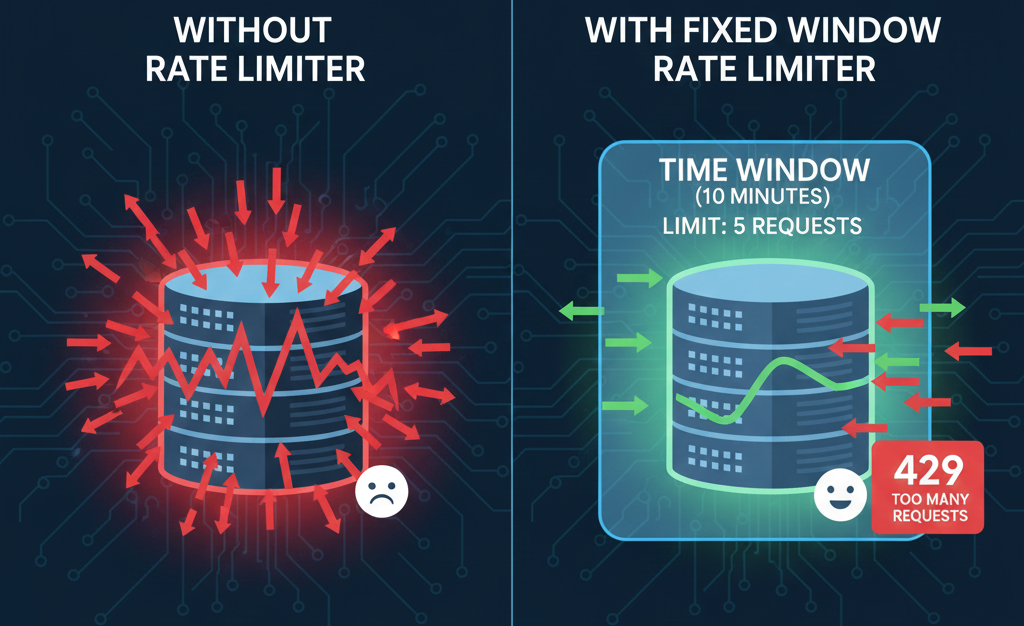
Fixed Window Rate Limiter in ASP.NET Core
How the Fixed Window Rate Limiter keeps ASP.NET Core APIs stable and controlled.
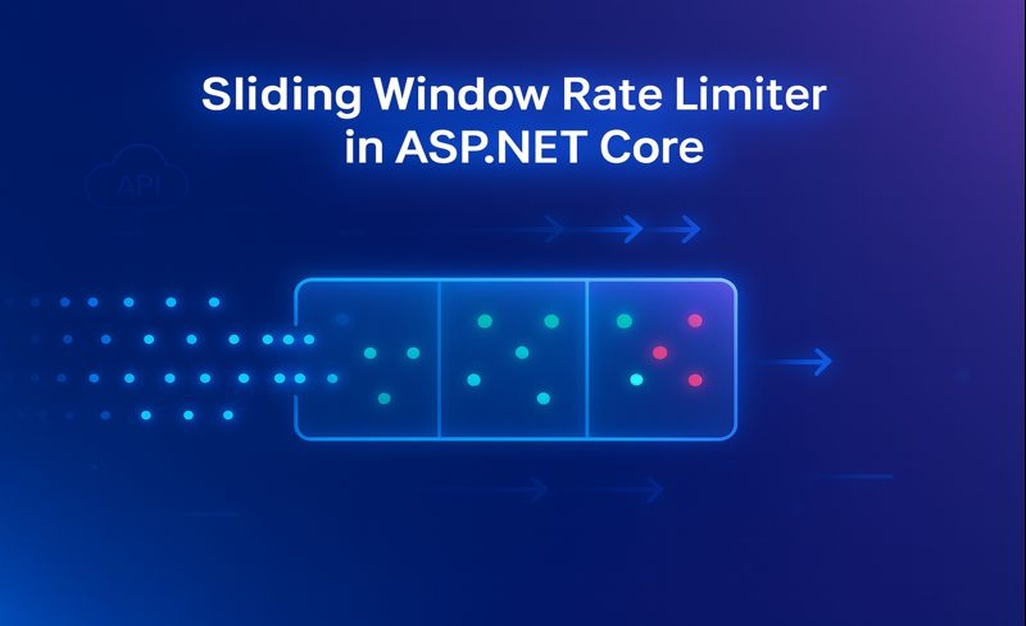
Sliding Window Rate Limiter in ASP.NET Core: What is it and when to use it?
Sliding Window Rate Limiting to balance bursty traffic and protect ASP.NET Core APIs.